Getting Started
Let's discover Port's Backstage plugin in less than 5 minutes.
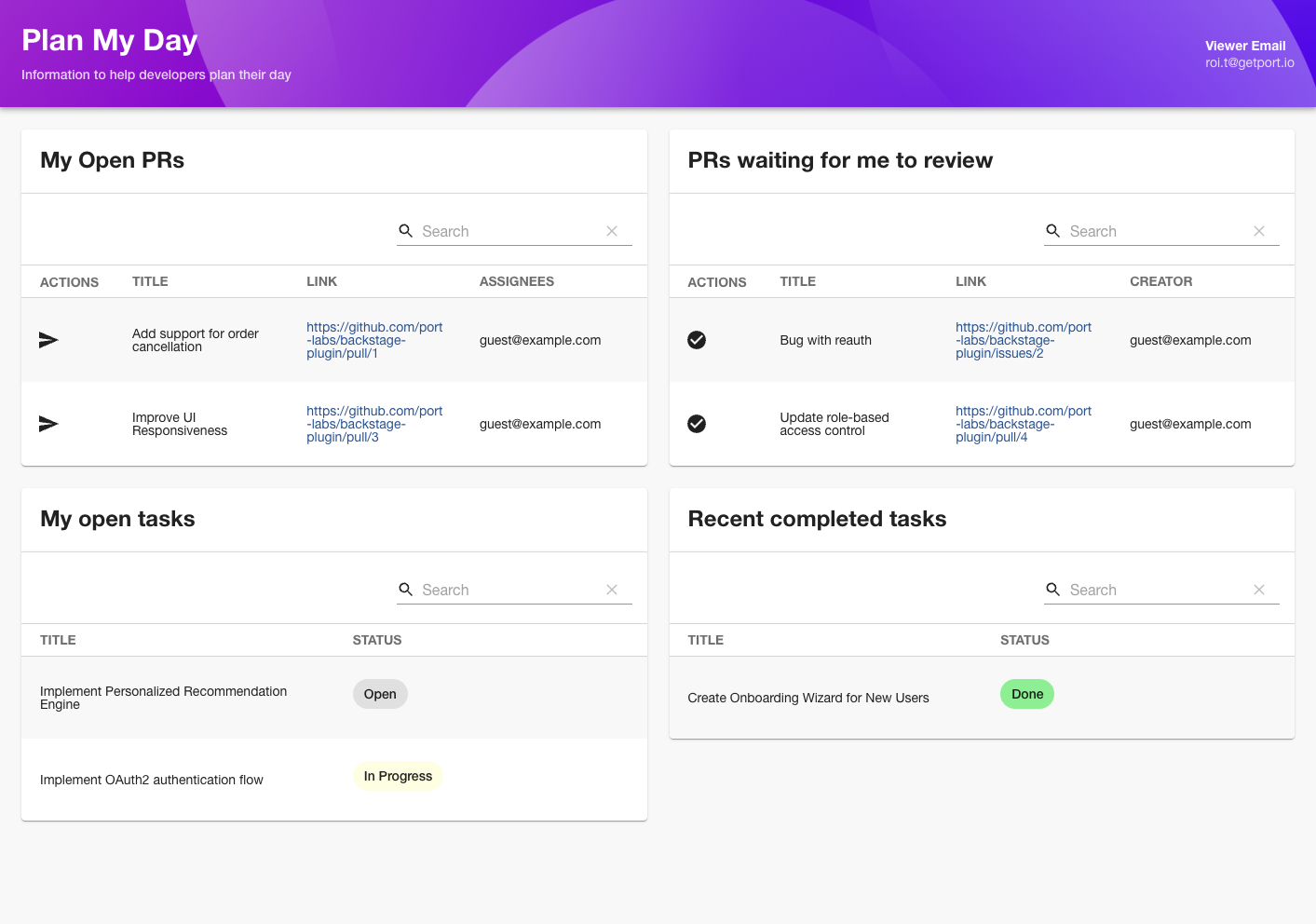
By the end of this guide, you will have integrated Jira & Github pull requests into your Backstage instance.
Prerequisites
- A Backstage instance
- A Port account
- Visit Port's website to create your free account.
- Follow the onboarding process to set up your organization.
Install Plugins
Install frontend and backend plugins using yarn:
# Install backend plugin
yarn --cwd packages/backend add @port-labs/backstage-plugin-framework-backend

# Install frontend plugin
yarn --cwd packages/app add @port-labs/backstage-plugin-framework
Then register the backend plugin in packages/backend/src/index.ts:
backend.add(import("@port-labs/backstage-plugin-framework-backend"));
Configure Credentials
-
In Port, on the top right, click on the
...(three dots) and select Credentials. -
Generate API credentials (Client ID and Client Secret)
-
Add these credentials to your Backstage's
app-config.yaml:port:
api:
baseUrl: https://api.getport.io/
auth:
clientId: YOUR_CLIENT_ID
clientSecret: YOUR_CLIENT_SECRET
Read more find your Port credentials
Adding the settings page
The settings page is a page that allows you to configure the plugin.
To add the settings page, you need to add the SettingsPage component to your Backstage instance.
In the file packages/app/src/App.tsx, replace the <Route path="/settings" element={<UserSettingsPage />}> with the following code:
import { SettingsPage } from "@port-labs/backstage-plugin-framework";

// ...
<Route path="/settings" element={<UserSettingsPage />}>
  <RequirePermission permission={catalogEntityCreatePermission}>
    <SettingsLayout.Route
      path="/port"
      title="Port"
      children={<SettingsPage />}
    />
  </RequirePermission>
</Route>;
To view the settings page, click the Settings button on the bottom left and click on the Port tab.
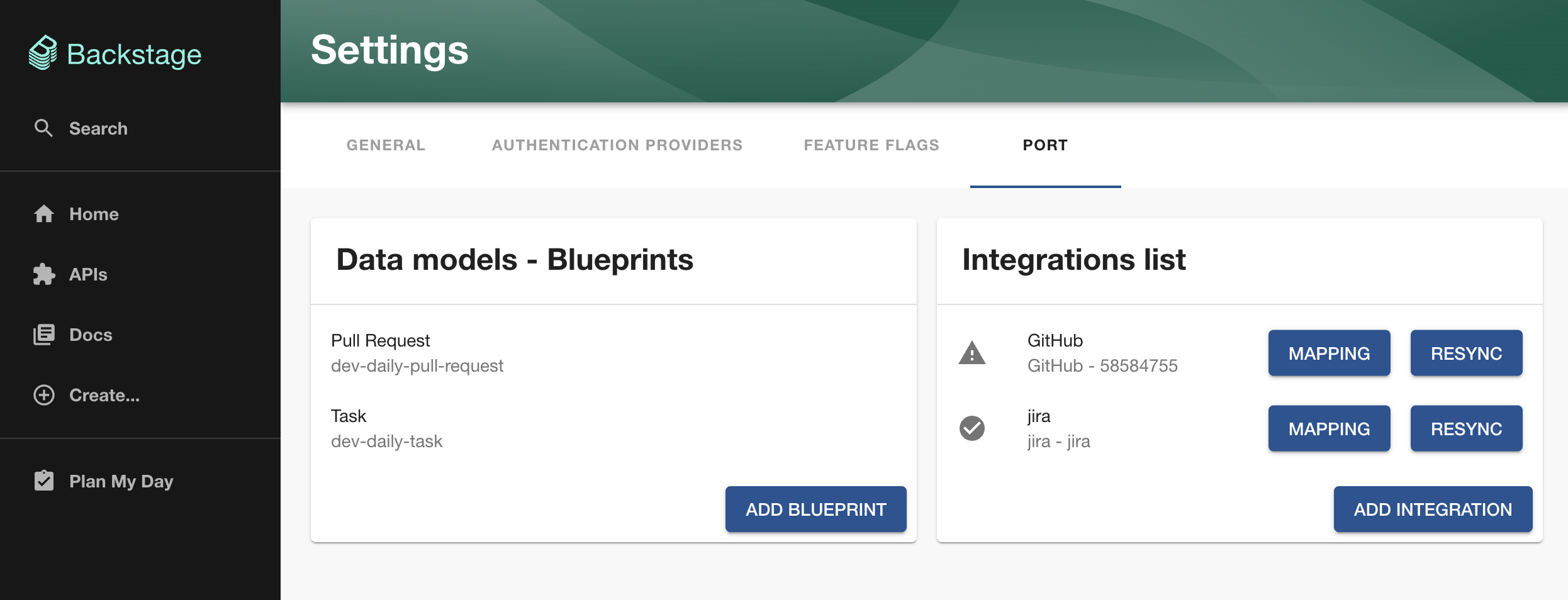
Example out-of-the-box plugin - Dev Daily
Follow the Dev Daily Plugin documentation to learn how to use the Dev Daily Plugin.
Extend your Backstage instance
Take your Backstage instance to the next level by integrating with Port's powerful API.
Start by reviewing our frontend plugin documentation to see what's possible. You can:
- Query Port's API to bring rich data into your Backstage views
- Create custom visualizations using Port's flexible data models
- Build tailored experiences for your teams
For complete API capabilities, check out our comprehensive API documentation.